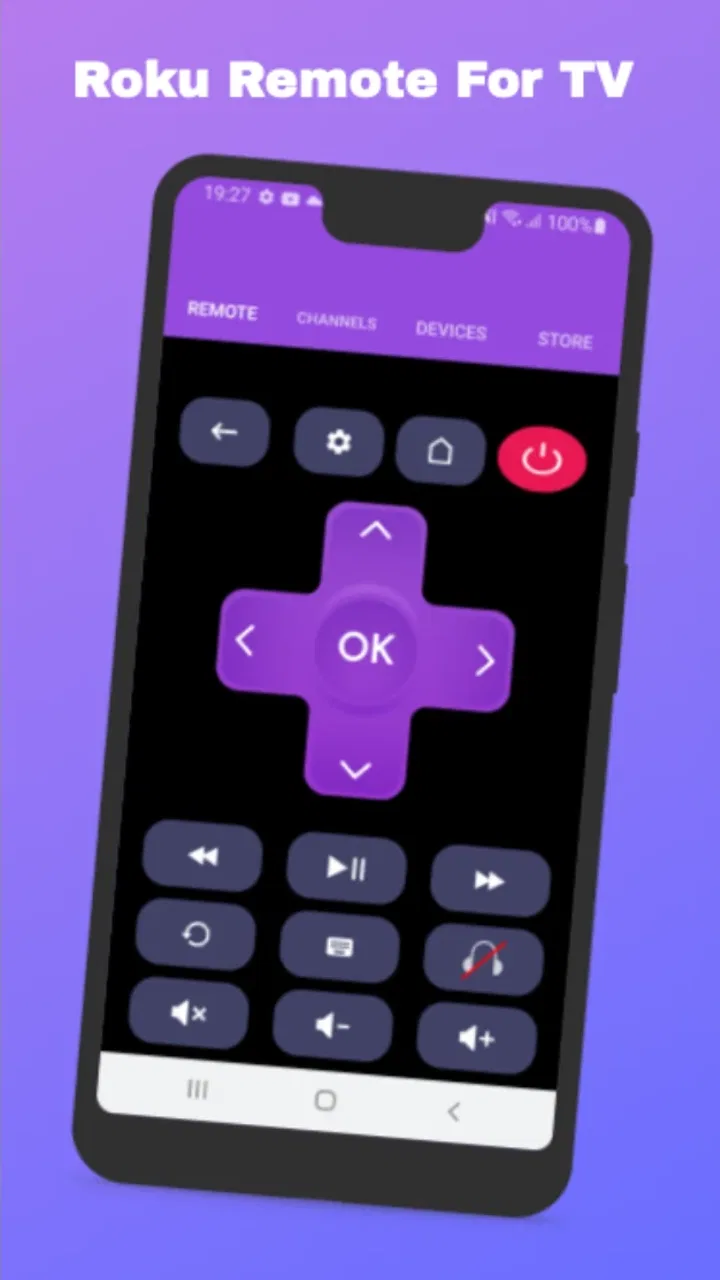
Remote for Roku TV Remote
- 4.7
- Rating
- 50.00K
- Installs
- Free
- Price
 Analysis by App-foxy
I usually notice the value of a TV remote app at the least convenient moment: the physical remote has disappeared between the sofa cushions, the batteries have given up, or someone has carried it into another room. Remote for Roku TV Remote is built for that exact household problem. It turns a compatible phone into a controller for a Roku TV or Roku device, and its appeal is straightforward rather than flashy: get control back without buying another physical remote.
I tested it with the mindset of someone trying to start watching quickly, not someone looking for a feature-packed entertainment hub. That distinction matters. This is a free House & Home app from Naba, aimed at everyday control of Roku equipment. It has an Everyone content rating, works on older Android hardware from version 4.4 onward, and its current version is 9.0. Those details make it approachable for households with an older spare phone, although the quality of the experience still depends heavily on the phone and TV being able to communicate properly.
From a missing remote to a working television
I find the best way to judge a phone remote is to try it before the original goes missing, while the TV is still easy to reach. That gives me time to check the connection and learn which Roku device is which, rather than troubleshooting in the middle of a show. Next, I’d look at what happens during longer or busier viewing sessions, when small delays and interruptions matter more.
You May Also Like

 Blood Strike: 2.5 Anniversary
Blood Strike’s Loadouts Turn Every Drop Into a Tactical Gamble
A close look at Blood Strike’s custom loadouts: how fast access to signature weapons reshapes its battle royale rhythm, rewards preparation, and narrows the gap between fights.

 Pandora - Music & Podcasts
Pandora’s Music Is Easy to Start, but Harder to Recover
Pandora’s strength is its low-effort path from a seed to a station. Its weak spot is how much confidence it asks you to place in connection, setup, and quiet recovery.

 8 Ball Pool
 Is Built on Rivalries, Rematches, and Routine
A close look at the rivalries, rematches, shared routines, and unanswered safety questions that turn a quick pool match into a persistent mobile community.

 Samsung Music
’s Quiet Strength Is Playing What You Already Own
Its reach comes less from spectacle than from dependable access to a personal library. That simplicity is both the app’s strongest retention engine and its ceiling.

 AccuWeather: Weather Radar
AccuWeather Review: A Quick, Clear Forecast for Everyday Decisions
For everyday plans, the best forecast is the one you can understand quickly. AccuWeather makes rain timing, radar, and local conditions easy to act on, with a few trade-offs.

 Hill Climb Racing
Why Hill Climb Racing Still Turns Crashes Into One More Run
A tiny car, a bumpy hill and one more upgrade: Hill Climb Racing keeps resurfacing because its simple chaos makes every near-miss feel personal.
More From Our News Desk
View All News


The starting condition is more important than the installation
Before opening the app, I would first check the practical setup: the phone and the Roku TV or Roku device need to be on the same home network for a phone-based remote to find the equipment. This is the first useful reality check. Installing a remote app does not automatically make a phone a universal controller, and changing from mobile data to the household Wi-Fi can be the difference between an immediate connection and a frustrating empty device screen.
That makes this tool especially useful after a remote has vanished, not necessarily after the television has been completely disconnected. If the Roku device is already configured and online, the phone can serve as a replacement control surface. If the television is waiting for initial setup, has lost its network connection, or is sitting on a different network segment, the app may not be able to rescue the situation on its own. In those cases, the original remote or another compatible control method is still important.
I also recommend installing it before an emergency rather than waiting until the exact minute a program is about to begin. A spare phone can be prepared while the physical remote is still available, which lets you confirm that the television appears and that the basic controls respond. That small preparation turns the app from a hopeful download into a genuine backup.
The first handoff: phone, network, and Roku device
Once the app is open, the key handoff is from the phone to the home network and then to the Roku hardware. I look for the television or streaming device in the available device selection, choose the intended one, and then test a simple command before attempting anything more complicated. A volume change or directional press is a better first test than immediately searching for a show because it tells me whether the connection is actually active.
This step can be confusing in homes with several Roku products. A bedroom television, a living-room television, and a separate streaming player may all appear as possible targets. The practical approach is to switch on only the device I want to control, or select each listed device in turn and send a harmless command. Giving the devices clear names in the wider Roku setup can also reduce mistakes, although the app itself should not be treated as a replacement for careful device selection.
One non-obvious advantage of a phone remote is that the phone is usually easier to locate than a small black controller. It is also possible to hand the phone to another person without moving the television. That helps in shared homes: one person can browse while another keeps the physical remote in reserve, and a guest can control the screen without searching through drawers for the original accessory.
Working through the everyday control sequence
After the connection succeeds, I use the app in the same order I would use a physical remote: wake or select the television, navigate through the Roku interface, confirm a choice, and adjust playback or volume as needed. The advantage is not that the phone changes what the Roku system can do. The advantage is that familiar controls are available on a device I already carry.
The phone screen introduces a different rhythm from a physical remote. With a hardware controller, I can often press buttons by touch while looking at the television. With a phone, I tend to glance down more often, especially when moving through directional controls. That makes the app comfortable for deliberate browsing but slightly less natural for blind, rapid button presses. I found it best to keep the phone in one hand and use the television as the visual reference, rather than staring at the phone throughout the whole session.
For typing, a phone can be more convenient than repeatedly tapping letters with a directional pad, depending on how the app and Roku interface hand off text entry. This is where a smartphone remote can save time during searches or sign-in steps. I would still keep expectations realistic: the app is a remote control, not a faster replacement for every Roku screen. Some text fields, system prompts, or app-specific interfaces may behave differently from the main Roku navigation.
A useful workflow is to leave the app open during a viewing session instead of closing it after every command. That reduces the number of reconnection moments and makes quick adjustments easier. At the same time, I would not keep the phone permanently dedicated to the television if it is needed for calls, navigation, or battery-sensitive tasks. Its greatest strength is convenience, not becoming a second full-time remote.
The handoff between people in the home
The most realistic scenario for this app is a shared evening. The physical Roku remote is missing, one person finds the phone app, selects the living-room device, and restores control without interrupting the rest of the household for long. The phone then moves between family members as they search, pause, adjust volume, or return to the home screen.
That handoff is easier when the person who connected first explains which Roku device was selected and leaves the phone unlocked while another person takes over. It is less smooth when several people install separate remote apps and each one tries to discover the same television. Multiple controllers can be useful, but they can also create uncertainty about which phone is currently sending commands. For a family, one prepared phone is often more dependable than several untested installations.
There is also a privacy and attention trade-off. A phone remote sits beside notifications, messages, and other distractions, while a physical remote has one job. If children are using it, the Everyone rating makes the app broadly suitable from a content perspective, but that does not remove the need to supervise the phone itself. The device may contain unrelated personal information, and handing it over as a remote is not the same as handing over a dedicated controller.
What the successful result looks like
When everything lines up, the outcome is pleasantly simple: the Roku TV or device responds, the missing remote stops being an emergency, and the phone becomes a practical substitute for ordinary navigation. I value that directness. There is no reason for a remote app to turn a basic volume adjustment into a project, and this one is most useful when it stays in the background.
The app’s audience appears to agree with that basic idea. It holds a 4.6 average from around 2.4 thousand ratings, with more than a hundred written reviews, and has passed 50 thousand installs. Those figures do not guarantee that it will connect in every home, but they suggest that the central use case is clear enough for many people to understand and try.
Because it is free, the decision to test it is low-risk in financial terms. That is particularly helpful if the alternative is buying a replacement remote for a television that is otherwise working perfectly. Still, “free” does not mean frictionless. The real cost can be time spent checking Wi-Fi, identifying the correct Roku device, keeping the phone charged, and reconnecting after network changes.
Where the flow breaks
The most important failure point is network discovery. If the phone is using mobile data, connected to a guest network, or attached to a different Wi-Fi band or access point that isolates devices, the Roku equipment may not appear. I would troubleshoot the network before blaming the app: place both devices on the same household Wi-Fi, close and reopen the app, and confirm that the Roku television is powered and responsive.
A second break occurs when the Roku hardware itself is offline. A phone remote cannot reliably replace the physical controller for every setup task if the television needs to reconnect to Wi-Fi. This is the reason I would keep the original remote somewhere known, even after adopting the app. The phone is an excellent backup when the Roku system is already reachable; it is a weaker rescue tool when the connection has completely disappeared.
Device confusion is another practical limitation. In a multi-TV home, choosing the wrong Roku target can make the app appear unreliable when it is actually controlling another screen. I recommend testing the selected device with a visible but harmless action, such as moving the focus on the home screen, before starting playback. That extra second prevents the classic mistake of changing the wrong television in another room.
Phone interruptions can also break the flow. A call, low battery, screen lock, or someone picking up the phone for another task can leave the household looking for control again. This is not a defect unique to this app, but it changes how I judge it compared with a physical remote. The hardware controller wins for instant access and shared use; the phone wins when the hardware controller is missing and the phone is already nearby.
How it compares with the usual alternatives
The obvious alternative is the original Roku remote. That remains the better choice for a household that wants tactile buttons, quick operation without unlocking a phone, and independence from a smartphone battery. A replacement physical remote can also be preferable for older users or anyone who dislikes navigating a touch screen while watching television.
The phone app is more attractive when the original remote is lost, when a second controller is useful, or when the household already keeps a phone beside the sofa. It also avoids the immediate expense of purchasing replacement hardware. Compared with a general universal remote app, a Roku-focused tool has a clearer purpose: it is intended for Roku TVs and Roku devices rather than trying to cover every television brand and entertainment component.
That focus is also its boundary. If the room contains a soundbar, cable box, game console, and several brands of television, a universal remote or a physical multi-device controller may create a more complete setup. This app should be judged as a Roku control solution, not as a replacement for every remote in the house.
Small habits that make it more dependable
I would use three habits with this app. First, prepare one spare phone while the physical remote still works, then test the intended Roku device. Second, keep the phone and television on the same trusted home network and avoid assuming that a guest network will allow them to communicate. Third, label or otherwise identify the target television before sending commands in a home with multiple Roku products.
Another useful habit is to treat the app as a backup with a known storage place. If the phone is always left charging near the sofa, it becomes a predictable substitute rather than another object that can disappear. This sounds minor, but a remote app is only useful when the controlling phone is available, charged, and not locked away in another room.
For search-heavy viewing, I would reach for the phone because typing can be less tiring than moving through an on-screen keyboard with a directional controller. For quick volume changes during a conversation, I would prefer whichever device is already in my hand. For guests, I would explain the selected device first, because the biggest avoidable error is not a difficult button layout; it is sending commands to the wrong Roku screen.
Who should install it and who should skip it
I recommend it to Roku TV owners who want a free emergency remote, families that benefit from a second controller, and people who regularly use a phone near the television. It is also a sensible option for someone with an older Android phone, since the minimum operating-system requirement reaches back to Android 4.4. The broad age rating makes it suitable for general household use, while the simple purpose makes it easy to explain to another family member.
I would skip it if you need one app to control a mixed collection of televisions, sound systems, and cable equipment. I would also avoid relying on it as the only controller if your Roku device frequently loses Wi-Fi or if the main users need physical buttons without looking at a screen. In those situations, the original remote or a dedicated replacement is the safer primary option.
My final assessment after following the whole workflow
Remote for Roku TV Remote succeeds when the starting condition is ordinary: the Roku device is already connected, the physical remote is unavailable, and a phone is ready on the same home network. From there, the path from discovery to control is useful and easy to understand. The app does not eliminate every setup problem, but it can turn a missing accessory into a manageable inconvenience.
Naba’s app is best understood as a practical fallback rather than a complete smart-home command center. Its free availability, broad device compatibility on Android, and focused Roku purpose make it worth trying for the right household. My recommendation is to install it before you need it, test the correct television, and keep a physical backup for network emergencies. Used that way, Remote for Roku TV Remote delivers exactly the kind of everyday help I want from a remote app: it gets control back quickly, while making its limits clear enough to plan around.
FAQs for Remote for Roku TV Remote
01How do I set up the Remote for Roku TV Remote app?
To set up the Remote for Roku TV Remote app, ensure your mobile device and Roku TV are connected to the same Wi-Fi network. Open the app, and it will automatically search for available Roku devices. Select your Roku TV from the list, and you’ll be ready to control it directly from your phone.
02Is the Remote for Roku TV Remote app free to use?
The app offers a free version with basic remote functionalities. However, it may include ads and limited features. To unlock premium features like voice commands or ad-free experience, you might need to purchase a subscription or make a one-time payment within the app.
03Can I use the Remote for Roku TV Remote app without Wi-Fi?
No, the Remote for Roku TV Remote app requires both your mobile device and Roku TV to be connected to the same Wi-Fi network. It does not support Bluetooth or IR connectivity, so a stable Wi-Fi connection is essential for the app to function correctly.
04What features does the Remote for Roku TV Remote app offer?
The app provides a range of features such as a virtual remote interface, keyboard support for easier text input, and the ability to launch channels directly. Some versions may include voice command capabilities and personalization options, enhancing the overall user experience.
05Is the Remote for Roku TV Remote app compatible with all Roku devices?
The app is compatible with most Roku streaming devices and Roku TVs. However, it’s important to ensure that your device is running a supported version of Roku OS. Checking the app’s compatibility list or contacting customer support can help confirm if your specific model is supported.
Pros
- Intuitive interface for easy navigation.
- Quick connection with Roku devices.
- Multiple device support in one app.
- Customizable remote layout options.
- Voice command integration available.
Cons
- Ads can be intrusive at times.
- Limited features in free version.
- Some buttons may lag occasionally.
- Requires Wi-Fi for full functionality.
- Not compatible with older Roku models.

Remote for Roku TV Remote
Gallery